> ## Documentation Index
> Fetch the complete documentation index at: https://docs.intelligence-management-platform.com/llms.txt
> Use this file to discover all available pages before exploring further.
# Agent workbench
> All eight workbench sections for configuring an agent: basics, instructions, knowledge, tools, chat experience, appearance, access, and developer.
export const RightsCallout = ({right, flags}) =>
Who sees this: requires {right === "none" ? "no special rights — available to every signed-in user" : `the ${right} right (or super admin)`}.
{flags && flags !== "none" ? ` Only visible when the server enables ${flags}.` : ""}
;
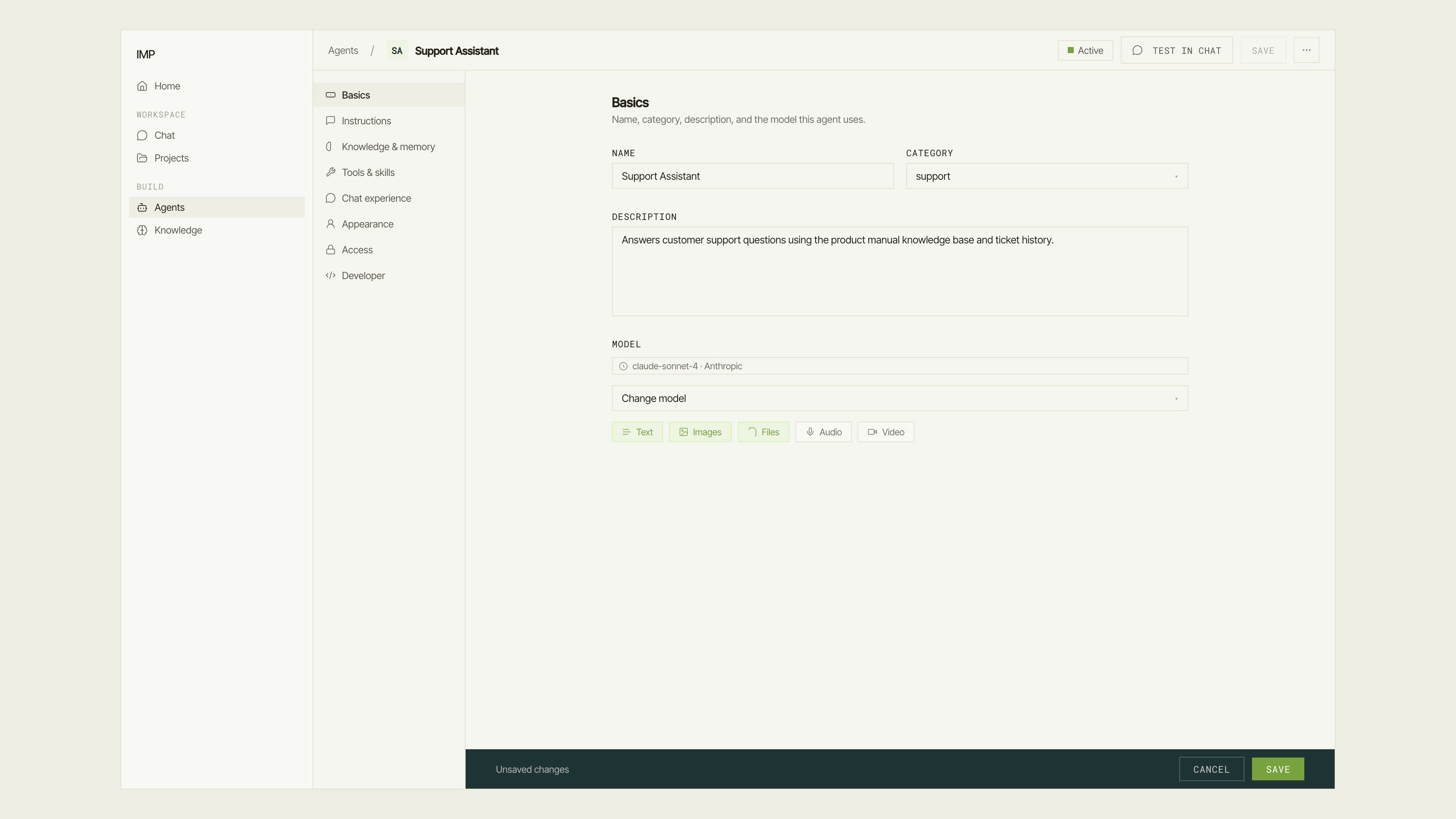 ## Opening the workbench
From the [agents list](/building/agents/overview), click any agent row to open its detail panel, then click **Edit**. You can also navigate directly to `/agents/edit/{id}`.
## Header actions
The workbench header shows the agent's name with a breadcrumb back to **Agents**. The action bar on the right has:
* **Active / Inactive toggle** — flip the agent between active (available to users) and inactive (hidden from chat).
* **Test in chat** — opens a new conversation with this agent in `/chat/{id}/new` so you can try changes without leaving the workbench. If you have unsaved edits, IMP prompts you to confirm before navigating.
* **Save** — commits all staged changes. The Save Bar also appears at the viewport bottom whenever there are unsaved edits.
* **Overflow menu (⋯)** — **Duplicate**, **Copy ID**, **Copy slug** (when a slug is set), and **Delete** (destructive, requires typing a confirmation phrase).
Changes are staged locally until you click **Save**. Navigating away with unsaved edits triggers a confirmation guard.
## Basics
The Basics section sets the agent's identity and the model it uses.
| Field | What it does |
| --------------- | ---------------------------------------------------------------------------------------------------------------------------- |
| **Name** | The display name shown in the agent picker and conversation header. Required. |
| **Category** | Optional label (marketing / sales / finance / hr / coding / support / research / knowledge / product) for organizing agents. |
| **Description** | A short summary shown in the agent detail panel. |
| **Model** | The LLM this agent uses. Searchable selector with a badge showing the current model and provider. |
Below the model selector, **modality tiles** (Text, Images, Files, Audio, Video) show which input types the selected model supports. Tap a tile to see the allowed MIME types.
## Instructions
The Instructions section defines what the agent knows to do.
* **Custom instructions** — the main markdown editor. Write system-prompt text here: persona, tone, task constraints, examples. Supports headings, lists, and code blocks. This is the primary place to shape agent behavior.
* **System instructions** (read-only, when set) — collapsed disclosure showing instructions injected by a developer via the backend SDK. You cannot edit these from the UI; they come from code.
* **Prompt templates** — a panel listing prompt templates assigned to this agent. Users can insert these from the chat composer's **+** menu. Click **Manage** to open the prompt browser and add or remove templates.
Prompt templates are a good way to give users pre-written starting points without baking that text into the system prompt.
## Knowledge & memory
The Knowledge & memory section controls what the agent can retrieve and remember.
**Agentic retrieval** (when the `agentic_context_search` tool is installed on this deployment): a toggle that enables a tool-loop retrieval mode. When enabled, the agent decides when to search and which knowledge bases to query. Enabling opens the **Configure knowledge search** wizard, which walks through Sources, Routing, Vocabulary, Memory, and Behavior steps. You can re-open the wizard at any time by clicking the summary card.
**Long-term memory**: a context combobox. Select a context to give the agent a personal memory store — it reads from and writes items to that context per user over time. Set to "None" to disable memory.
See [Knowledge overview](/building/knowledge/overview) for how contexts, items, and embeddings work.
## Tools and skills
The Tools & skills section lists every tool and skill available on this deployment and lets you toggle them per agent.
* **Search** — filter the tool list by name or description.
* **Category filter** — narrow by tool category.
* **Expand all / Collapse all** — control the accordion state of all category groups.
* **Result count** — shows how many tools are found (if filtered) or available.
For detailed guidance on tool configuration, sub-agents, and skills, see [Tools and skills](/building/agents/tools-and-skills).
## Chat experience
The Chat experience section controls what users see in the conversation.
| Setting | What it does |
| ------------------------- | ----------------------------------------------------------------------------------------------------------------------------------------------------- |
| **Welcome message** | Text shown when a user opens a new chat before sending a message. Supports plain text; leave blank for no message. |
| **Follow-up suggestions** | Toggle to enable auto-generated follow-up chips after each agent reply. |
| **Feedback collection** | Toggle to enable thumbs-up / thumbs-down feedback buttons on agent messages. |
| **Default agent** | Toggle to make this the agent that loads automatically when a user opens Chat (instead of the agent picker). Only one agent can be default at a time. |
| **Sandbox** | Toggle to give the agent a sandboxed code execution environment for running code snippets. |
| **Max tool steps** | Maximum number of sequential tool calls the agent may make before stopping (0–50). Prevents run-away tool loops. |
## Appearance
The Appearance section controls the agent's visual identity.
* **Avatar** — displays the current avatar image (or initial monogram if none is set). Click **Generate avatar** (when available on this deployment) to open the AI avatar generator: describe the look, choose a style, and apply the result. The generator produces a square image stored in your file storage.
* **Idle animation** — upload a Lottie JSON file that plays while the agent is waiting for input (S3-gated; only shown when S3 is configured). A preview appears after upload.
* **Responding animation** — upload a Lottie JSON that plays while the agent is generating a reply. Preview appears after upload.
## Access
The Access section controls who can chat with this agent.
The **RBAC control** lets you choose one of four sharing modes:
| Mode | Who can use the agent |
| ----------- | ------------------------------------------- |
| **Private** | Only you. |
| **Users** | Specific users you pick from the directory. |
| **Roles** | All users assigned a specific role. |
| **Public** | Every signed-in user in the organization. |
Select a mode, then add the users or roles. Changes take effect after saving.
For a full guide to sharing and team-level access, see [Access](/building/agents/access-and-safety).
## Developer
The Developer section exposes integration identifiers and a ready-to-use API snippet.
* **Agent ID** — the stable UUID for this agent. Copy it for use in API calls or backend configuration.
* **Slug** (when set) — the human-readable path component. Displayed as `agents/{slug}/run/{id}` for easy copy-paste into URLs.
* **Endpoint** — the full streaming endpoint URL for this agent, formed as `{BACKEND}/agents/{slug}/run/{id}`.
* **curl snippet** — a ready-to-run curl command that sends a test message to the endpoint.
* **TypeScript snippet** — an equivalent `fetch` call with typed headers and a streaming body reader.
Set `EXULU_API_TOKEN` in your environment and you can run the curl snippet directly. The TypeScript snippet is production-ready with `crypto.randomUUID()` for session and request IDs.
## Opening the workbench
From the [agents list](/building/agents/overview), click any agent row to open its detail panel, then click **Edit**. You can also navigate directly to `/agents/edit/{id}`.
## Header actions
The workbench header shows the agent's name with a breadcrumb back to **Agents**. The action bar on the right has:
* **Active / Inactive toggle** — flip the agent between active (available to users) and inactive (hidden from chat).
* **Test in chat** — opens a new conversation with this agent in `/chat/{id}/new` so you can try changes without leaving the workbench. If you have unsaved edits, IMP prompts you to confirm before navigating.
* **Save** — commits all staged changes. The Save Bar also appears at the viewport bottom whenever there are unsaved edits.
* **Overflow menu (⋯)** — **Duplicate**, **Copy ID**, **Copy slug** (when a slug is set), and **Delete** (destructive, requires typing a confirmation phrase).
Changes are staged locally until you click **Save**. Navigating away with unsaved edits triggers a confirmation guard.
## Basics
The Basics section sets the agent's identity and the model it uses.
| Field | What it does |
| --------------- | ---------------------------------------------------------------------------------------------------------------------------- |
| **Name** | The display name shown in the agent picker and conversation header. Required. |
| **Category** | Optional label (marketing / sales / finance / hr / coding / support / research / knowledge / product) for organizing agents. |
| **Description** | A short summary shown in the agent detail panel. |
| **Model** | The LLM this agent uses. Searchable selector with a badge showing the current model and provider. |
Below the model selector, **modality tiles** (Text, Images, Files, Audio, Video) show which input types the selected model supports. Tap a tile to see the allowed MIME types.
## Instructions
The Instructions section defines what the agent knows to do.
* **Custom instructions** — the main markdown editor. Write system-prompt text here: persona, tone, task constraints, examples. Supports headings, lists, and code blocks. This is the primary place to shape agent behavior.
* **System instructions** (read-only, when set) — collapsed disclosure showing instructions injected by a developer via the backend SDK. You cannot edit these from the UI; they come from code.
* **Prompt templates** — a panel listing prompt templates assigned to this agent. Users can insert these from the chat composer's **+** menu. Click **Manage** to open the prompt browser and add or remove templates.
Prompt templates are a good way to give users pre-written starting points without baking that text into the system prompt.
## Knowledge & memory
The Knowledge & memory section controls what the agent can retrieve and remember.
**Agentic retrieval** (when the `agentic_context_search` tool is installed on this deployment): a toggle that enables a tool-loop retrieval mode. When enabled, the agent decides when to search and which knowledge bases to query. Enabling opens the **Configure knowledge search** wizard, which walks through Sources, Routing, Vocabulary, Memory, and Behavior steps. You can re-open the wizard at any time by clicking the summary card.
**Long-term memory**: a context combobox. Select a context to give the agent a personal memory store — it reads from and writes items to that context per user over time. Set to "None" to disable memory.
See [Knowledge overview](/building/knowledge/overview) for how contexts, items, and embeddings work.
## Tools and skills
The Tools & skills section lists every tool and skill available on this deployment and lets you toggle them per agent.
* **Search** — filter the tool list by name or description.
* **Category filter** — narrow by tool category.
* **Expand all / Collapse all** — control the accordion state of all category groups.
* **Result count** — shows how many tools are found (if filtered) or available.
For detailed guidance on tool configuration, sub-agents, and skills, see [Tools and skills](/building/agents/tools-and-skills).
## Chat experience
The Chat experience section controls what users see in the conversation.
| Setting | What it does |
| ------------------------- | ----------------------------------------------------------------------------------------------------------------------------------------------------- |
| **Welcome message** | Text shown when a user opens a new chat before sending a message. Supports plain text; leave blank for no message. |
| **Follow-up suggestions** | Toggle to enable auto-generated follow-up chips after each agent reply. |
| **Feedback collection** | Toggle to enable thumbs-up / thumbs-down feedback buttons on agent messages. |
| **Default agent** | Toggle to make this the agent that loads automatically when a user opens Chat (instead of the agent picker). Only one agent can be default at a time. |
| **Sandbox** | Toggle to give the agent a sandboxed code execution environment for running code snippets. |
| **Max tool steps** | Maximum number of sequential tool calls the agent may make before stopping (0–50). Prevents run-away tool loops. |
## Appearance
The Appearance section controls the agent's visual identity.
* **Avatar** — displays the current avatar image (or initial monogram if none is set). Click **Generate avatar** (when available on this deployment) to open the AI avatar generator: describe the look, choose a style, and apply the result. The generator produces a square image stored in your file storage.
* **Idle animation** — upload a Lottie JSON file that plays while the agent is waiting for input (S3-gated; only shown when S3 is configured). A preview appears after upload.
* **Responding animation** — upload a Lottie JSON that plays while the agent is generating a reply. Preview appears after upload.
## Access
The Access section controls who can chat with this agent.
The **RBAC control** lets you choose one of four sharing modes:
| Mode | Who can use the agent |
| ----------- | ------------------------------------------- |
| **Private** | Only you. |
| **Users** | Specific users you pick from the directory. |
| **Roles** | All users assigned a specific role. |
| **Public** | Every signed-in user in the organization. |
Select a mode, then add the users or roles. Changes take effect after saving.
For a full guide to sharing and team-level access, see [Access](/building/agents/access-and-safety).
## Developer
The Developer section exposes integration identifiers and a ready-to-use API snippet.
* **Agent ID** — the stable UUID for this agent. Copy it for use in API calls or backend configuration.
* **Slug** (when set) — the human-readable path component. Displayed as `agents/{slug}/run/{id}` for easy copy-paste into URLs.
* **Endpoint** — the full streaming endpoint URL for this agent, formed as `{BACKEND}/agents/{slug}/run/{id}`.
* **curl snippet** — a ready-to-run curl command that sends a test message to the endpoint.
* **TypeScript snippet** — an equivalent `fetch` call with typed headers and a streaming body reader.
Set `EXULU_API_TOKEN` in your environment and you can run the curl snippet directly. The TypeScript snippet is production-ready with `crypto.randomUUID()` for session and request IDs.