> ## Documentation Index
> Fetch the complete documentation index at: https://docs.intelligence-management-platform.com/llms.txt
> Use this file to discover all available pages before exploring further.
# Items
> Create, search, filter, bulk-process, and archive items in a knowledge context.
export const RightsCallout = ({right, flags}) =>
Who sees this: requires {right === "none" ? "no special rights — available to every signed-in user" : `the ${right} right (or super admin)`}.
{flags && flags !== "none" ? ` Only visible when the server enables ${flags}.` : ""}
;
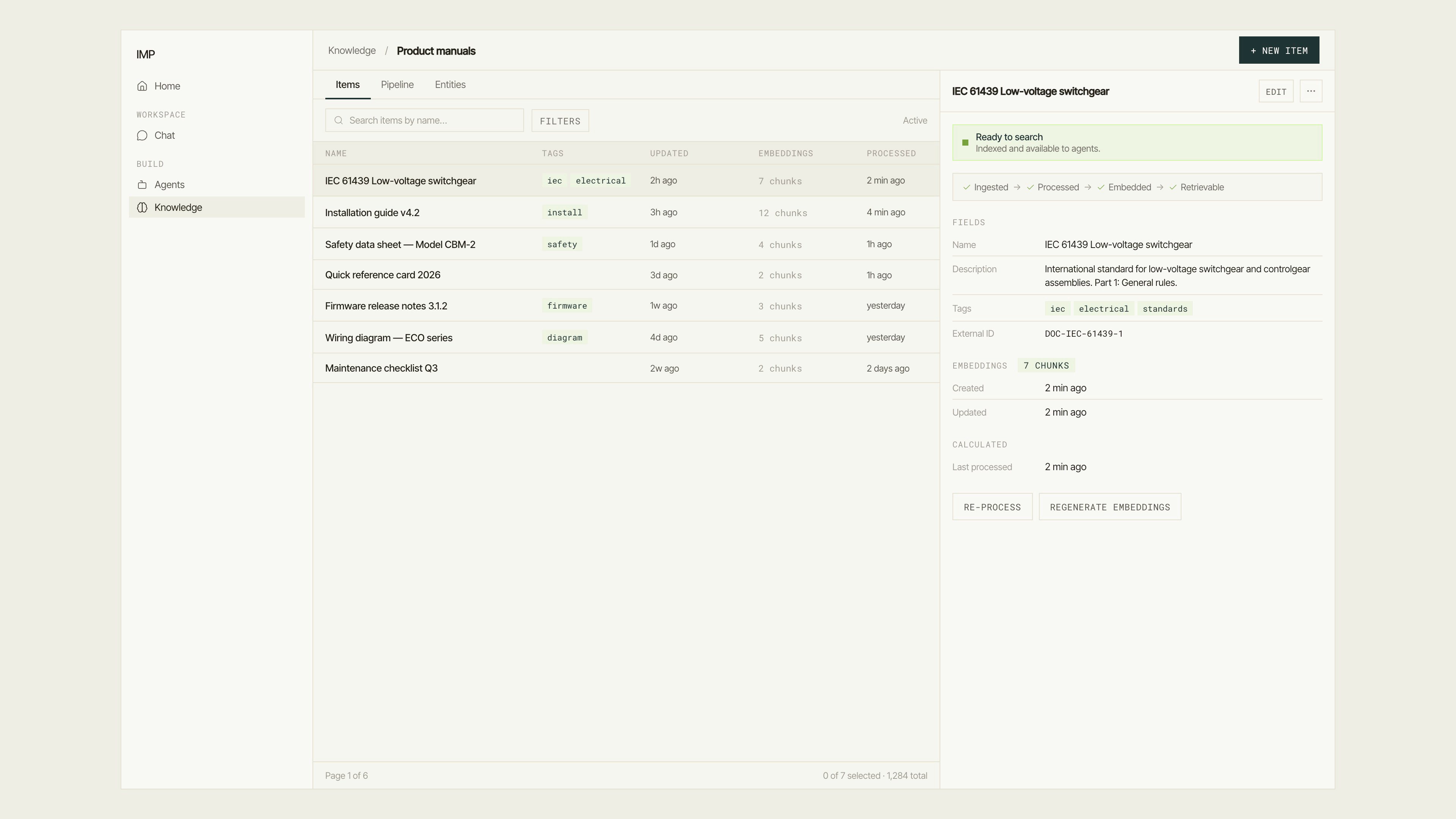 ## The items table
Inside a context workspace, click the **Items** tab. The table shows every item in the context with the following columns:
| Column | What it shows |
| -------------- | -------------------------------------------------------------------------------------- |
| **Name** | The item's display name. Click to open the item detail panel on the right. |
| **Tags** | Optional labels attached to the item. |
| **Updated** | When the item was last modified. |
| **Embeddings** | The number of embedding chunks, or "Not embedded" if none exist yet. |
| **Processed** | When the item was last processed by the Processor stage. "Never" if not yet processed. |
### Switching views
The table header has two view tabs:
* **Active** — shows live items available for retrieval (default).
* **Archived** — shows items that have been archived and excluded from retrieval.
### Searching and filtering
* **Search** — type into "Search items by name…" to filter by name in real time.
* **Filters** — click **Filters** to open the bulk filter dialog, which lets you narrow by tags, embedding status, processed date, and more. An active filter is summarized in the toolbar.
### Pagination
The table paginates. Navigate with **Previous page** / **Next page** or jump to **First page**. The footer shows a summary: "X of Y selected · Z total".
## Create an item
Click **New item** in the top-right of the context workspace.
The **New item** dialog asks for:
* **Name** (required) — the item's title. Shown in the table and in agent citations.
Click **Create item**. The item appears in the table with empty Processed and Embeddings values. Fill in the item's content by opening it and editing the Fields section.
## Item detail
Click any item row to open its detail panel. The panel has four sections:
| Section | Content |
| -------------- | ------------------------------------------------------------------------------------------------------------------------------ |
| **Fields** | Name, description, tags, external ID, and any custom fields defined for this context. |
| **Access** | Item-level RBAC: who can retrieve this specific item. Modes match the agent access control (Private / Users / Roles / Public). |
| **Embeddings** | The chunks generated for this item: content preview, creation date, and update date. Paginated. |
| **Calculated** | Read-only metadata computed by the pipeline: last processed timestamp. |
At the top of the panel, a **status chip** shows the item's retrieval readiness:
* **Ready to search** — the item has embeddings and is indexed. "Indexed and available to agents."
* **Not searchable yet** — the item has not been processed or embedded. "Process this item to make it retrievable."
* **Processing…** — a pipeline job is in progress.
### Item pipeline controls
The panel header has per-item pipeline actions:
* **Process this item** (or **Re-process**) — runs the Processor stage on this item immediately, splitting content into chunks.
* **Generate embeddings** (or **Regenerate embeddings**) — runs the Embedder stage on this item's chunks.
After triggering a pipeline action, a **progress banner** appears:
* **Queued** — "Your changes were saved. Pipeline jobs were scheduled — you can leave this page; they'll keep running."
* **Inline sync** — "Your changes were saved and are being applied — no queues are configured for this context."
* **Done** — "Your changes were saved and the pipeline finished."
Click **Run in background** to dismiss the banner and continue working elsewhere.
### Item actions menu
The ⋯ menu on the item panel has:
| Action | What it does |
| ----------------------- | ------------------------------------------------------------------------------------------------ |
| **Archive** | Moves the item to the Archived view. Archived items are excluded from retrieval but not deleted. |
| **Unarchive** | Restores an archived item to Active. |
| **Process item** | Runs the Processor on this item. |
| **Generate embeddings** | Runs the Embedder on this item's chunks. |
| **Delete embeddings** | Deletes the stored vectors for this item (the item itself stays). Regenerate them later. |
| **Delete item** | Permanently deletes the item and all its embeddings. This cannot be undone. |
## Bulk operations
Select items using the checkbox in each row. A **selection bar** appears at the bottom of the table:
* **`{n}` items selected** — count of selected items with a **Clear selection** link.
* **Archive** — archives all selected items.
* **Delete** — permanently deletes all selected items and their embeddings (requires confirmation).
* **Unarchive** — available in the Archived view.
For bulk pipeline operations (process or embed a filtered set), use the **Filters** dialog which exposes "Process items in bulk" and "Generate embeddings in bulk" with a filter-based item preview.
## Archive vs. delete
* **Archive** keeps the item and its data but excludes it from retrieval. Use this when you want to retain the history but stop the agent from surfacing the content.
* **Delete** is permanent and removes the item, its chunks, and its embeddings. Use this when the content should not exist at all.
## Next steps
How the Sources → Processor → Embedder stages work.
Add structured entity extraction to this context.
## The items table
Inside a context workspace, click the **Items** tab. The table shows every item in the context with the following columns:
| Column | What it shows |
| -------------- | -------------------------------------------------------------------------------------- |
| **Name** | The item's display name. Click to open the item detail panel on the right. |
| **Tags** | Optional labels attached to the item. |
| **Updated** | When the item was last modified. |
| **Embeddings** | The number of embedding chunks, or "Not embedded" if none exist yet. |
| **Processed** | When the item was last processed by the Processor stage. "Never" if not yet processed. |
### Switching views
The table header has two view tabs:
* **Active** — shows live items available for retrieval (default).
* **Archived** — shows items that have been archived and excluded from retrieval.
### Searching and filtering
* **Search** — type into "Search items by name…" to filter by name in real time.
* **Filters** — click **Filters** to open the bulk filter dialog, which lets you narrow by tags, embedding status, processed date, and more. An active filter is summarized in the toolbar.
### Pagination
The table paginates. Navigate with **Previous page** / **Next page** or jump to **First page**. The footer shows a summary: "X of Y selected · Z total".
## Create an item
Click **New item** in the top-right of the context workspace.
The **New item** dialog asks for:
* **Name** (required) — the item's title. Shown in the table and in agent citations.
Click **Create item**. The item appears in the table with empty Processed and Embeddings values. Fill in the item's content by opening it and editing the Fields section.
## Item detail
Click any item row to open its detail panel. The panel has four sections:
| Section | Content |
| -------------- | ------------------------------------------------------------------------------------------------------------------------------ |
| **Fields** | Name, description, tags, external ID, and any custom fields defined for this context. |
| **Access** | Item-level RBAC: who can retrieve this specific item. Modes match the agent access control (Private / Users / Roles / Public). |
| **Embeddings** | The chunks generated for this item: content preview, creation date, and update date. Paginated. |
| **Calculated** | Read-only metadata computed by the pipeline: last processed timestamp. |
At the top of the panel, a **status chip** shows the item's retrieval readiness:
* **Ready to search** — the item has embeddings and is indexed. "Indexed and available to agents."
* **Not searchable yet** — the item has not been processed or embedded. "Process this item to make it retrievable."
* **Processing…** — a pipeline job is in progress.
### Item pipeline controls
The panel header has per-item pipeline actions:
* **Process this item** (or **Re-process**) — runs the Processor stage on this item immediately, splitting content into chunks.
* **Generate embeddings** (or **Regenerate embeddings**) — runs the Embedder stage on this item's chunks.
After triggering a pipeline action, a **progress banner** appears:
* **Queued** — "Your changes were saved. Pipeline jobs were scheduled — you can leave this page; they'll keep running."
* **Inline sync** — "Your changes were saved and are being applied — no queues are configured for this context."
* **Done** — "Your changes were saved and the pipeline finished."
Click **Run in background** to dismiss the banner and continue working elsewhere.
### Item actions menu
The ⋯ menu on the item panel has:
| Action | What it does |
| ----------------------- | ------------------------------------------------------------------------------------------------ |
| **Archive** | Moves the item to the Archived view. Archived items are excluded from retrieval but not deleted. |
| **Unarchive** | Restores an archived item to Active. |
| **Process item** | Runs the Processor on this item. |
| **Generate embeddings** | Runs the Embedder on this item's chunks. |
| **Delete embeddings** | Deletes the stored vectors for this item (the item itself stays). Regenerate them later. |
| **Delete item** | Permanently deletes the item and all its embeddings. This cannot be undone. |
## Bulk operations
Select items using the checkbox in each row. A **selection bar** appears at the bottom of the table:
* **`{n}` items selected** — count of selected items with a **Clear selection** link.
* **Archive** — archives all selected items.
* **Delete** — permanently deletes all selected items and their embeddings (requires confirmation).
* **Unarchive** — available in the Archived view.
For bulk pipeline operations (process or embed a filtered set), use the **Filters** dialog which exposes "Process items in bulk" and "Generate embeddings in bulk" with a filter-based item preview.
## Archive vs. delete
* **Archive** keeps the item and its data but excludes it from retrieval. Use this when you want to retain the history but stop the agent from surfacing the content.
* **Delete** is permanent and removes the item, its chunks, and its embeddings. Use this when the content should not exist at all.
## Next steps
How the Sources → Processor → Embedder stages work.
Add structured entity extraction to this context.