

Budgets are enforced by LiteLLM, which is the authoritative source of truth for all budget data. IMP’s Budgets page is a management interface that reads from and writes to LiteLLM’s budget API. Reset dates are standardized UTC calendar boundaries (start of day, week, or month in UTC) set via LiteLLM budget endpoints.
What the budgets page is
The Budgets page (/budgets) lets you set spending caps on any entity that consumes model tokens: individual users, roles, teams, projects, or agents. Budgets are expressed in USD and enforced at request time by the LiteLLM proxy — when an entity reaches its limit, further model requests are blocked until the period resets.
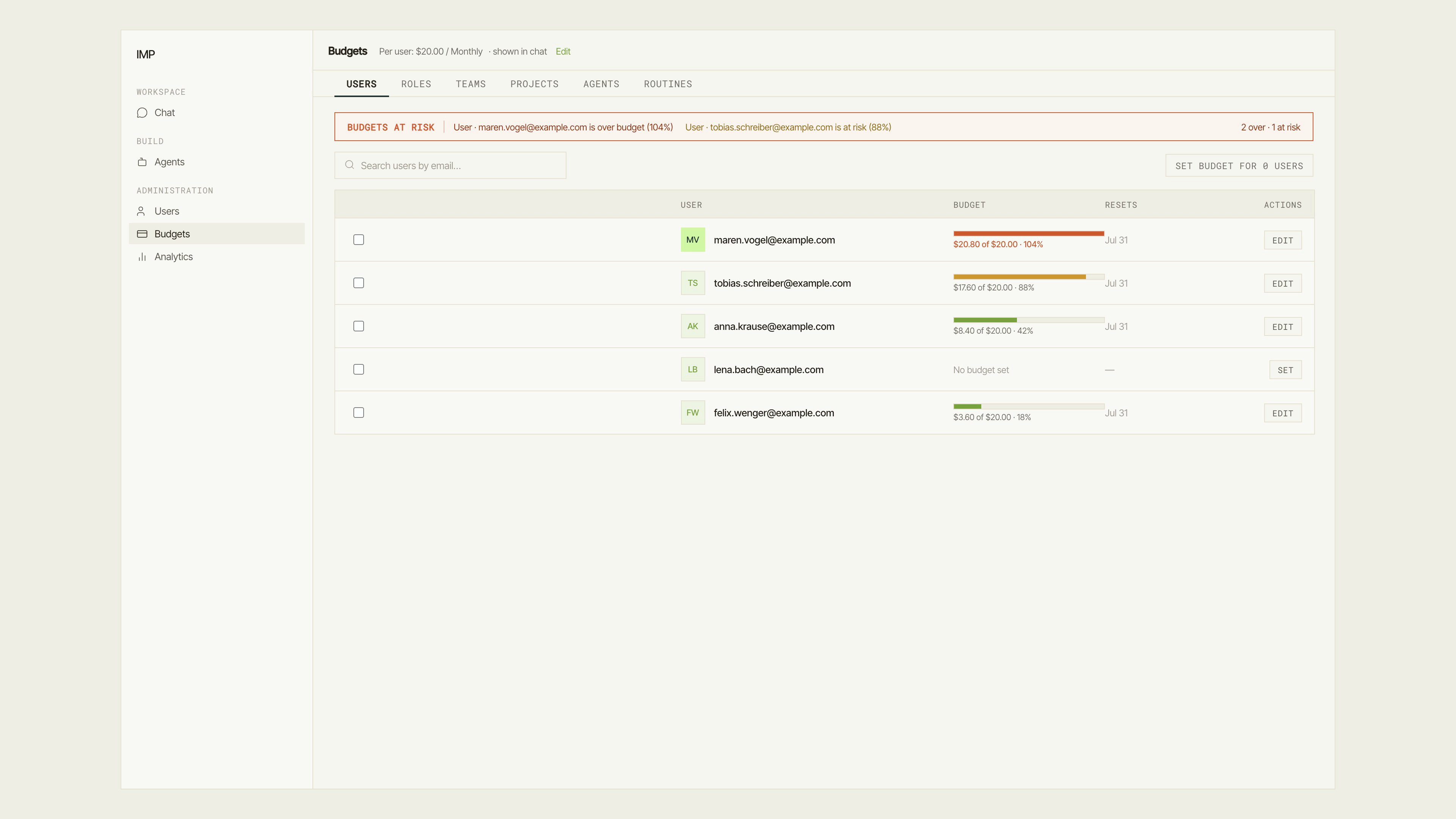
The Budgets page showing an At risk strip at the top and a budgets table below, with entity type tabs (Users, Roles, Teams, Projects, Agents, Routines) and per-row budget bars.
Entity types
The page has a tab strip to switch between entity types:
Use Search
{type} by name… in the toolbar to filter within a type.
Budgets at risk
The Budgets at risk strip appears at the top of the page when one or more entities are over or near their budget. Each item shows the entity type, name, and the percentage consumed (e.g., “User · alice@example.com is over budget (104%)”). Clicking an item scrolls to that row in the table. When all entities are within their limits, the strip shows “All budgets on track.”Budget editor
Editing a budget: Edit on a row opens the budget editor — raise the cap, click Save budget, and the row's budget bar updates.
The editor also shows the Current status of the budget if one is already set: the amount spent so far, the cap, and the projected spend by reset.
Click Save budget to commit. Click Remove to delete the budget and let the entity spend freely until a new one is set (a confirmation dialog describes the effect).
Bulk apply
Select multiple rows with the checkboxes in the table. The selection bar offers Set budget for{count} {type} which opens the budget editor in bulk mode. The same amount, reset period, and reset date are applied to every selected entity. Partial failures are reported per-item.
Default budget policy
The Default budget policy link (shown as a summary line above the table, e.g., “Per user: $20.00 / Monthly”) opens a dialog that sets organization-wide defaults: Default per-user budget section:- Enable a global per-user budget — toggle to activate the default.
- Default budget (USD) — the amount applied automatically to new users who have no explicit budget.
- Reset period — Daily, Weekly, or Monthly.
- Show budget status to users — when enabled, users see a Budget
{percent}% chip in the application’s top bar. This toggle also controls whether the Usage section appears in a user’s Settings page and whether the top-bar chip’s Details link to personal usage is active. When the toggle is off, none of these surfaces render. - Budget display — choose whether users see the exact amount spent (“Exact amount ($)”) or only a percentage (“Percentage only”).
The audit trail for policy changes is not yet available — who changed the policy and when is not recorded. This is a known gap.
How budgets reset
Budgets reset at the UTC calendar boundary set in the editor:- Daily — start of the UTC day (00:00 UTC).
- Weekly — start of the UTC week (Monday 00:00 UTC).
- Monthly — start of the UTC month (first of the month, 00:00 UTC).
Next steps
Users & access
Assign roles and teams that budgets apply to.
Analytics
View spend trends that drive budget consumption.
Budgets in chat
How users see their budget in the chat interface.