

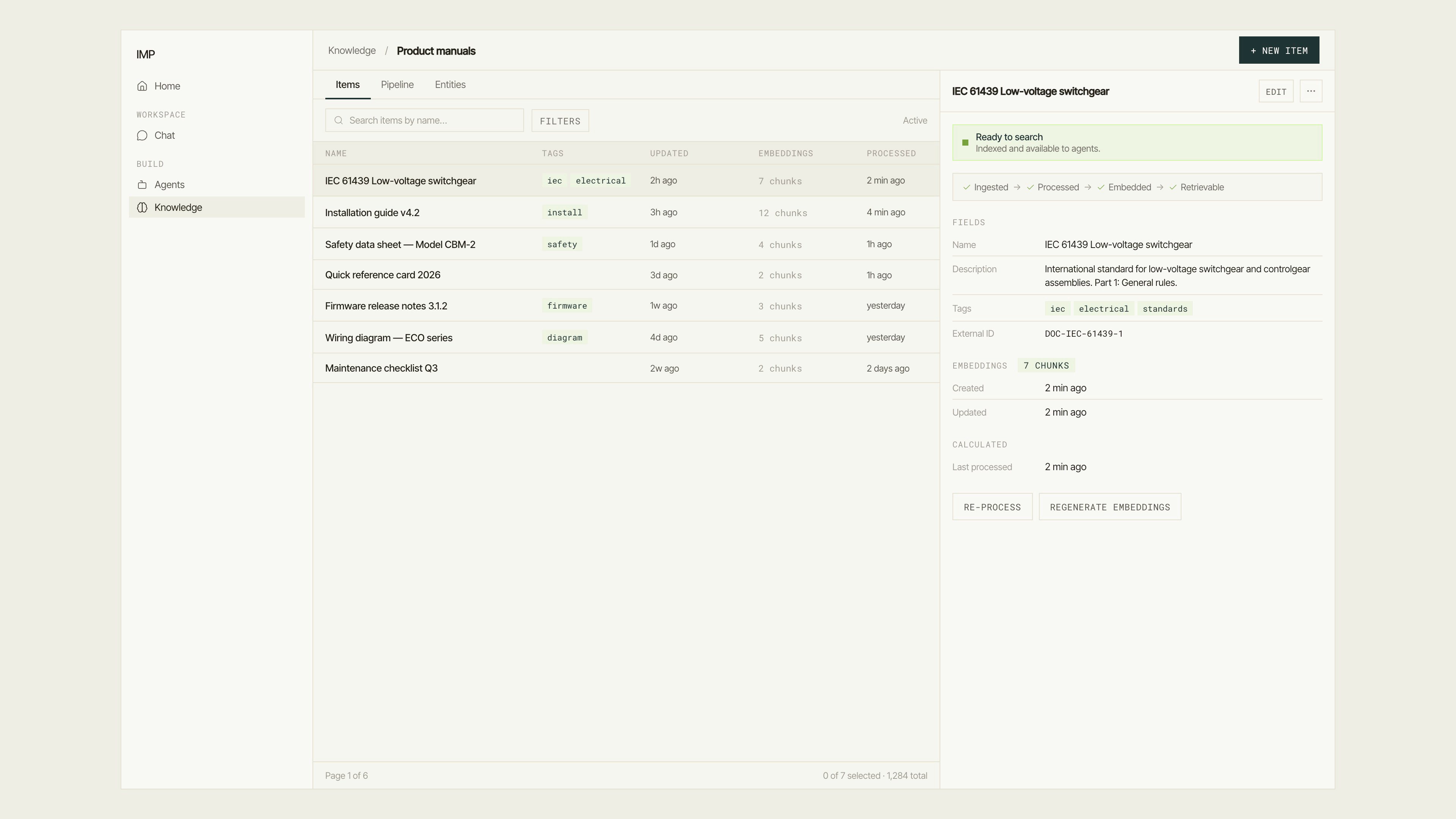
The Items tab with an item selected: items table on the left, item detail panel on the right showing status, pipeline steps, fields, and embeddings.
The items table
Inside a context workspace, click the Items tab. The table shows every item in the context with the following columns:Switching views
The table header has two view tabs:- Active — shows live items available for retrieval (default).
- Archived — shows items that have been archived and excluded from retrieval.
Searching and filtering
- Search — type into “Search items by name…” to filter by name in real time.
- Filters — click Filters to open the bulk filter dialog, which lets you narrow by tags, embedding status, processed date, and more. An active filter is summarized in the toolbar.
Pagination
The table paginates. Navigate with Previous page / Next page or jump to First page. The footer shows a summary: “X of Y selected · Z total”.Create an item
Items can be created in three ways: 1. New item (manual) Click New item in the top-right of the context workspace. The New item dialog asks for:- Name (required) — the item’s title. Shown in the table and in agent citations.
Item detail
Click any item row to open its detail panel. The panel has four sections:
At the top of the panel, a status chip shows the item’s retrieval readiness:
- Ready to search — the item has embeddings and is indexed. “Indexed and available to agents.”
- Not searchable yet — the item has not been processed or embedded. “Process this item to make it retrievable.”
- Processing… — a pipeline job is in progress.
Item pipeline controls
The panel header has per-item pipeline actions:- Process this item (or Re-process) — runs the Processor stage on this item immediately, splitting content into chunks.
- Generate embeddings (or Regenerate embeddings) — runs the Embedder stage on this item’s chunks.
- Queued — “Your changes were saved. Pipeline jobs were scheduled — you can leave this page; they’ll keep running.”
- Inline sync — “Your changes were saved and are being applied — no queues are configured for this context.”
- Done — “Your changes were saved and the pipeline finished.”
Item actions menu
The ⋯ menu on the item panel has:Bulk operations
Select items using the checkbox in each row. A selection bar appears at the bottom of the table:{n}items selected — count of selected items with a Clear selection link.- Archive — archives all selected items.
- Delete — permanently deletes all selected items and their embeddings (requires confirmation).
- Unarchive — available in the Archived view.
Archive vs. delete
- Archive keeps the item and its data but excludes it from retrieval. Use this when you want to retain the history but stop the agent from surfacing the content.
- Delete is permanent and removes the item, its chunks, and its embeddings. Use this when the content should not exist at all.
Next steps
Pipeline
How the Sources → Processor → Embedder stages work.
Entities
Add structured entity extraction to this context.
Bulk import
Create many items at once from a CSV or spreadsheet file.
Tools and skills
Enable the Knowledge base editor so agents can write items during chat.