

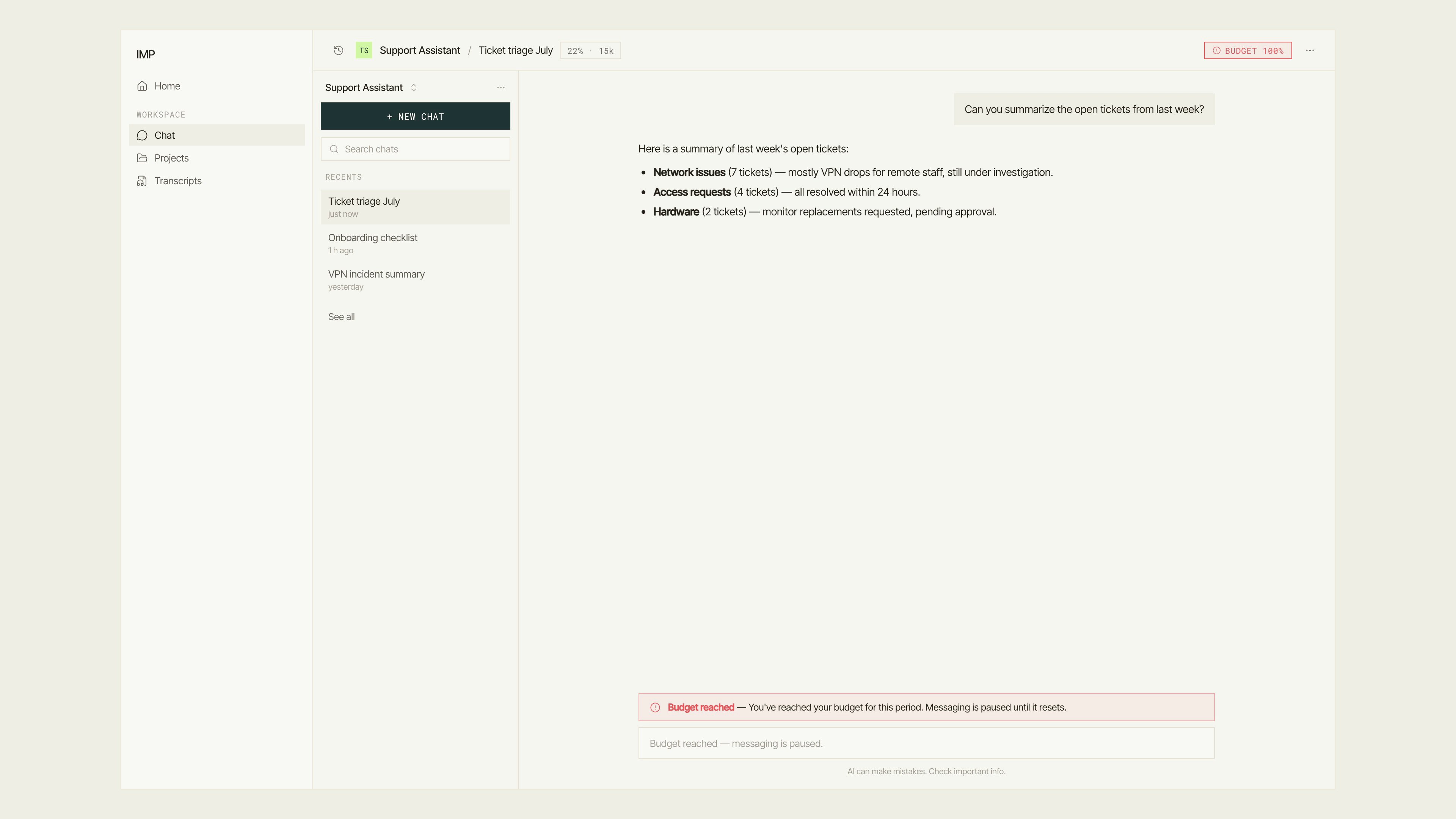
The chat screen with the budget chip showing 'Budget 100%' in red in the top bar, and the budget-reached banner and blocked composer below.
The budget chip
When a budget is configured and your administrator has opted to show it to users, a Budget{percent}% chip appears in the top bar on every screen. The percentage shown is the share of your budget already consumed in the current period.
Click the chip (or open Usage from the conversation’s ⋯ menu) to see a breakdown panel. Alongside the token usage for the current conversation, the panel shows a Your budget section with a bar indicating how much of the period budget you have spent and how much remains. A Details link at the bottom of the popover takes you directly to Settings → Usage for a full per-model breakdown.
When the budget runs out
Once you reach 100% of your budget, IMP pauses new messages:- The composer shows: “You’ve reached your budget for this period. Messaging is paused until it resets.”
- The message input changes to: “Budget reached — messaging is paused.”
- A toast notification appears: Budget reached — “You’ve used your full budget for this period. Messaging is paused until it resets.”
Reset dates
Budgets reset on a schedule set by your administrator. By default the period is a calendar day, week, or month in UTC. Administrators can also set a custom reset date. When the reset happens, your spending counter returns to zero and you can send messages again.Budgets are set and managed by administrators. If you think your budget is too low, or if you do not see a budget chip when you expect one, contact your administrator. See Administration → Budgets for the admin-side configuration.
Next steps
Model override and usage
View per-message token counts in the Usage panel.
Context compaction
Keep conversations within the model’s context window.
Settings → Usage
See your full per-model usage history and detailed spend breakdown.